Adding Teams, Judges, Rooms, and Debaters
There are two ways to enter teams, judges, rooms, and debaters: Manually entering individually or importing data in batches. In most cases, the batch import is probably easier. However, you may need to enter data manually to add one or two teams at a time, or to fix any errors that may have occurred when importing data in bulk.
Batch Data Import
To import data in bulk: First, navigate to the “File Data Upload” link under the “Admin” section of the navigation menu:
Then, you should see a page where you can add a file for judges, rooms and teams:
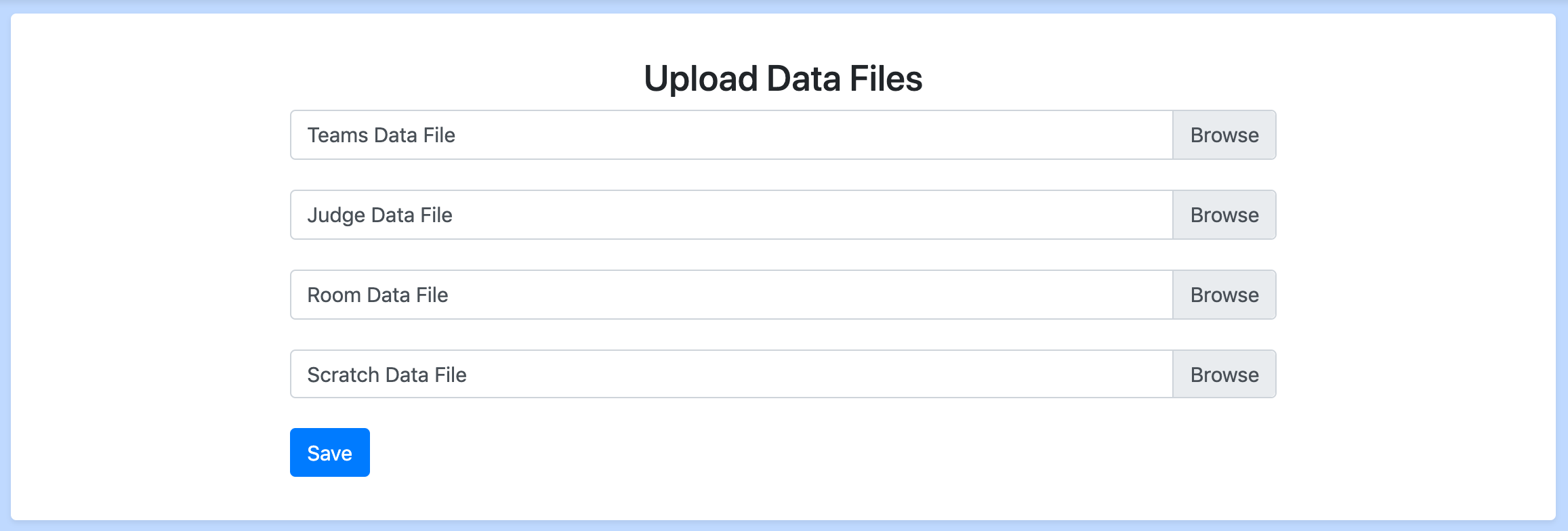
You can upload xlsx files through this page to import data in bulk. When there is an error in the format of the xlsx files, all changes generated from the file are aborted, even if some were valid, so that you can simply re-upload a corrected version of the file
You can use these templates for the teams, judges, and rooms files
Judge spreadsheet columns
Column A: Judge Name
Column B: Judge Email (optional)
Column C: Judge Rank
Columns D onward: Affiliated schools (one per column). Blank cells are ignored, so you can leave extra cells empty without creating phantom schools.
The final N columns (where N is the value of the Total Rounds setting) represent the rounds you expect the judge to attend (
R1throughRN). UseY,Yes,True,1,X, orInto mark a judge as expected for that round; leave the cell empty (or anything else) if they are not expected.
When the spreadsheet is imported, the expected-round columns populate the “Expected Judges” tab in batch check-in and the public judge list.
NOTE: The files must be .xlsx files. Not .xls, .csv, or anything
similar
NOTE: All data in the first row will be ignored. That row is assumed to be a header row.
Manual Data Entry
From the home page, you can add and view all Schools, Judges, Teams, Debaters, and Rooms. To enter information quickly, you should have multiple people reading through your registration information and entering it into the program at any given moment.

Schools
Name - Name of the school, e.g. “Yale”
Judges
Name - Name of the judge.
Email - Optional email address used for sending judge portal links.
Rank - A number from 0.0 - 99.99 that represents the relative ranking of this judge. Higher is a “better” judge.
Affiliated Schools - A list of schools that this judge should be unable to judge. Use this for team scratches as well as multiple affiliations
Wing Only - Check this box if the judge can only serve as a wing judge and not as a chair. Wing-only judges will be excluded from automatic chair assignment during both in-rounds and outrounds. This is useful for ensuring that less experienced judges are never assigned as the chair of a panel.
Note: Judges automatically get assigned unique judge codes (e.g., “wandering-tsunami-234567”, “icy-firefly-89abcd”) when created. These codes allow judges to open the judge portal, update expected availability, and submit e-ballots remotely. You can find a judge’s code:
In the judge list view (appears in parentheses after the name)
On the judge detail page
Judge codes can be used from the mit-tab homepage under Judge Portal and Ballots.
Teams
Name - Name of the team, e.g. “Yale A”
School - School that this team should be protected from in pairing. If you are entering a hybrid, select the team that has protection.
Hybrid school - For hybrids, the school they are not taking protection from. This will prevent the team from being judged by this school, but not from hitting teams from that school
Debaters - The debaters on this team, up to two debaters may be chosen and you can add a debater directly (instead of having to enter them separately) using the button to the right of the selection box. If you select one debater then the program will treat the team as an iron man team.
Seed - The seed of the team, used during the first round pairing.
Break Preference - Whether this team prefers to break varsity or novice. This affects outround breaking if a novice team qualifies for the varsity break.
Checked in - If this box is checked then any rounds you pair will include this team in the pairing. Uncheck this if you want the team to not be paired into the rounds.
Scratch Count - Used for generating a form that allows you to immediately add scratches. Feel free to put zero and add scratches later (they can be added from either the judge page or the team page at any time).
Note: Teams automatically get assigned unique team access codes in the same word-word-code format as judge and registration codes. Team codes are authentication tokens for the team portal and are not displayed on pairings or staff views.
Debaters
Name - Name of the debater, e.g. “Matt Smith”.
Novice status - Varsity or novice, used by the program to determine novice team/debater rankings.
Rooms
Name - Name of the room.
Rank - A number from 0.0 - 99.99 that represents the relative ranking of this room. Higher is a “better” room, and higher ranked rooms will be paired in before other rooms.